


Anyone managing Intune compliance policies across iOS, macOS, Windows, and Android already knows this one. Apple, Google, or Microsoft ships a new major OS version, and now someone has to go through every compliance policy and every conditional launch setting in every App Protection Policy and bump osMinimumVersion by hand. Miss one and you’ve either locked out people on a perfectly good OS, or left an ancient version quietly allowed in.
I got tired of doing that manually, so I built an Azure Automation runbook for it. It pins osMinimumVersion to n-1, the second most recent major version, clears any maximum version cap, and for Android App Protection Policies it also pushes a minimum security patch level. Runs weekly. And the part I actually care about: nothing writes to Intune anywhere until you’ve explicitly whitelisted a platform yourself.
Where the version data comes from
I didn't want to scrape Apple release notes or dig through Microsoft's update catalog, so the script just pulls from endoflife.date instead. Community-maintained, one JSON schema across every platform, no auth required.
https://endoflife.date/api/ios.json
https://endoflife.date/api/macos.json
https://endoflife.date/api/windows.json
https://endoflife.date/api/android.json
Each response is an array of release cycles: cycle (version number), releaseDate, latest (latest build), end-of-life dates.
n-1 sounds simple until you actually try it
My first attempt just subtracted 1 from the major version number. Lasted about five minutes. Apple jumped iOS straight from 18 to 26 in 2025 when they switched to the year-based numbering, and that broke the math completely. So now it's positional instead: sort by major version descending, grab the second entry.
function Get-NMinus1Baseline {
    param([string] $Product, [object[]] $Cycles)

    if ($Product -eq 'windows') {
        $builds = $Cycles | Select-Object -ExpandProperty latest -Unique `
            | Sort-Object { [version] $_ } -Descending
        if ($builds.Count -lt 2) { throw "Not enough Windows release history" }
        return $builds[1]
    }

    $sorted = $Cycles | Where-Object { $_.cycle -match '^\d+$' } `
        | Sort-Object { [int] $_.cycle } -Descending
    if ($sorted.Count -lt 2) { throw "Not enough $Product release history" }
    return "$($sorted[1].cycle).0"
}
iOS, macOS, and Android use the cycle field, filtered down to numeric-only values so things like Android’s 4.4w (that’s Wear) don’t get picked up by accident. Windows is annoying in a different way: cycle IDs like 11-25h2-e don’t sort sensibly at all, so for Windows I use the actual build numbers from latest instead.
If the API is down, or hands back something the script doesn’t recognize, that platform just gets skipped for the run. No guessing. I’d rather have a platform quietly not update this week than have it update to something wrong.
What it actually touches
Compliance policies.
Pulls all device compliance policies over Graph, matches each one to a platform by @odata.type:
$odataPlatformMap = @{
    '#microsoft.graph.iosCompliancePolicy'               = 'ios'
    '#microsoft.graph.macOSCompliancePolicy'              = 'macos'
    '#microsoft.graph.windows10CompliancePolicy'          = 'windows'
    '#microsoft.graph.androidCompliancePolicy'            = 'android'
    '#microsoft.graph.androidWorkProfileCompliancePolicy' = 'android'
    '#microsoft.graph.androidDeviceOwnerCompliancePolicy' = 'android'
}
Every match gets osMinimumVersion set to the computed baseline, and osMaximumVersion cleared.
App Protection Policies (conditional launch).
For iOS and Android, it also goes after the conditional launch settings on Managed App Protection policies. iOS just gets minimumRequiredOsVersion set to the n-1 baseline. Android gets that plus minimumRequiredPatchVersion, which defaults to six months back from today (yyyy-MM-01):
$minimumPatchVersion = (Get-Date).ToUniversalTime().AddMonths(-$PatchLevelMonthsBack).ToString('yyyy-MM-01')Six months is just a default. -PatchLevelMonthsBack changes it if you want something else.
Making sure it can’t do anything stupid on day one
The whole time I was building this I kept thinking about the version of me that deploys it, forgets about it, and gets paged three weeks later because it silently rewrote a production policy. So there’s a two-layer gate.
First: the -Apply switch. Without it, everything is a dry run, no exceptions. Second: an Automation Variable, IntuneOSVersion-AutoApplyPlatforms, a comma-separated list of platforms actually allowed to be written (ios, macos, windows, android). Even with -Apply on, nothing gets touched unless its platform shows up in that list.
That’s what lets you link the schedule with Apply = true on day one and still stay completely in control, since the actual on/off switch is just editing a variable in the portal. There’s also IntuneOSVersion-ExcludePolicyIds, for any specific policy GUIDs you never want touched, useful if there’s some legacy compliance policy someone’s deliberately keeping on an old version.
Dry-run output looks like this:
Baseline for 'ios': osMinimumVersion = 18.0
Baseline for 'macos': osMinimumVersion = 15.0
Baseline for 'windows': osMinimumVersion = 10.0.26200
Baseline for 'android': osMinimumVersion = 16.0
--- Compliance Policies ---
DRY RUN 'dc-win10-prd' [windows] (309f7e0c-a8f5-406a-bd3c-d575b06510fc): osMinimumVersion '10.0.1904' -> '10.0.26200', osMaximumVersion '' -> (blank)
DRY RUN 'dc-win-cpc-prd' [windows] (36a277be-577b-4e1a-b835-596c95271da2): osMinimumVersion '10.0.2' -> '10.0.26200', osMaximumVersion '' -> (blank)
DRY RUN 'dc-win11-me-prd' [windows] (4093f181-94dc-412d-bbef-04a9ed85e55c): osMinimumVersion '10.0.2' -> '10.0.26200', osMaximumVersion '' -> (blank)
DRY RUN 'dc-win-shd-prd' [windows] (6fd6786b-78aa-439c-b445-5ef437cfe1c7): osMinimumVersion '10.0.2' -> '10.0.26200', osMaximumVersion '' -> (blank)
DRY RUN 'dc-win-edu-prd' [windows] (7a49eddf-0d6a-45ff-a1e0-75b7ea86c394): osMinimumVersion '10.0.2' -> '10.0.26200', osMaximumVersion '' -> (blank)
DRY RUN 'dc-byod-and-prd' [android] (84c879d0-979d-447b-b6fb-3f0cfec379b1): osMinimumVersion '13.0' -> '16.0', osMaximumVersion '' -> (blank)
DRY RUN 'dc-win-ksk-prd' [windows] (9b6104bf-d928-4013-9a1b-e6c00636b72c): osMinimumVersion '' -> '10.0.26200', osMaximumVersion '' -> (blank)
DRY RUN 'dc-block-deepseekai-ios-prd' [ios] (ab17aa5d-d8d2-41ed-898c-0e3320918115): osMinimumVersion '' -> '18.0', osMaximumVersion '' -> (blank)
DRY RUN 'dc-mac-prd' [macos] (ad90f617-5dc5-457f-9b7d-bd2c92be2f63): osMinimumVersion '26' -> '15.0', osMaximumVersion '' -> (blank)
DRY RUN 'dc-win-dev-prd' [windows] (d9dd90ac-e02a-456a-a734-d6c7a0f250a0): osMinimumVersion '10.0.2' -> '10.0.26200', osMaximumVersion '' -> (blank)
DRY RUN 'dc-managed-ksk-ipados-prd' [ios] (df63645c-a1d6-45c0-a27e-073d50199e0c): osMinimumVersion '18.4.1' -> '18.0', osMaximumVersion '' -> (blank)
DRY RUN 'dc-win11-prd' [windows] (fed326e5-3984-478f-9c92-d8a6364de121): osMinimumVersion '10.0.2' -> '10.0.26200', osMaximumVersion '' -> (blank)
Compliance policies: 14 scanned, 12 needed changes, 0 written.

--- App Protection Policies (conditional launch) ---
Android minimum patch level: 2026-02-01 (6 months back)
OK (no change) APP: 'mam-app-ios-allapps' [ios] minimumRequiredOsVersion=18.0
DRY RUN APP 'mam-app-android-allapps' [android] (T_d6c0627f-46af-4006-a97a-0031c80a66ca): minimumRequiredOsVersion '' -> '16.0', minimumRequiredPatchVersion '2023-04-01' -> '2026-02-01'
App Protection Policies: 1 needed changes, 0 written.
Done.
Deploying it
Prerequisites:
You'll need an Azure subscription, the Azure CLI, the Microsoft.Graph.Applications PowerShell module, and either Global Administrator or Privileged Role Administrator rights for the permission-grant step later on.
Step 1: deploy the Automation Account.
The repo has a deploy.sh that does the whole thing in one shot:
./deploy.sh \
  -g "rg-intune-automation" \
  -l "westeurope" \
  -a "aa-intune-osversion" \
  -s "<your-subscription-id>"
You end up with a resource group, an Automation Account with a system-assigned managed identity, a PowerShell 7.2 runbook already uploaded and published, two empty Automation Variables, and a weekly schedule set for Monday mornings at 06:00 UTC.
Here's the catch though: the script creates that schedule but can't link it to the runbook. The az automation schedule commands just don't support job schedule linking, at least not as of when I wrote this. So that part's manual, in the portal:
Automation Account → Runbooks → select the runbook → Link to schedule → select Weekly-IntuneOSVersionCheck → set the parameter Apply to true.
Don't worry about setting Apply = true right away. The variables from Step 4 are still empty at this point, so nothing's actually going to write anywhere yet.
Step 2: grant Graph permissions.
The managed identity needs two application permissions: DeviceManagementConfiguration.ReadWrite.All for compliance policies, DeviceManagementApps.ReadWrite.All for app protection policies. Run this from a machine where you're logged in as a Global Admin:
./Grant-ManagedIdentityGraphPermissions.ps1 `
    -AutomationAccountManagedIdentityObjectId "<object-id-from-identity-blade>"
The Object ID is on the Automation Account's Identity blade.
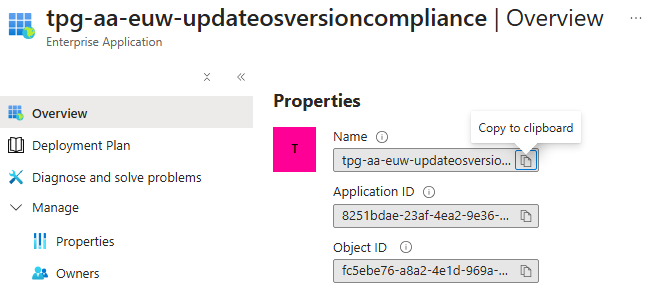
Behind the scenes, this connects to Graph interactively, finds both app roles on the Microsoft Graph service principal, and assigns them:
$roleNames = @(
    'DeviceManagementConfiguration.ReadWrite.All',
    'DeviceManagementApps.ReadWrite.All'
)

foreach ($roleName in $roleNames) {
    $appRole = $graphSp.AppRoles | Where-Object {
        $_.Value -eq $roleName -and $_.AllowedMemberTypes -contains 'Application'
    }
    New-MgServicePrincipalAppRoleAssignment `
        -ServicePrincipalId $AutomationAccountManagedIdentityObjectId `
        -PrincipalId $AutomationAccountManagedIdentityObjectId `
        -ResourceId $graphSp.Id `
        -AppRoleId $appRole.Id
}
Small thing that got me the first time: permission propagation can take up to 15 minutes. If your first run throws a 403, that's probably it. Just wait and retry.
Step 3: first dry run.
Kick the runbook off manually from the portal (Automation Account → Runbooks → pick the runbook → Start), no parameters. Everything defaults to dry run.
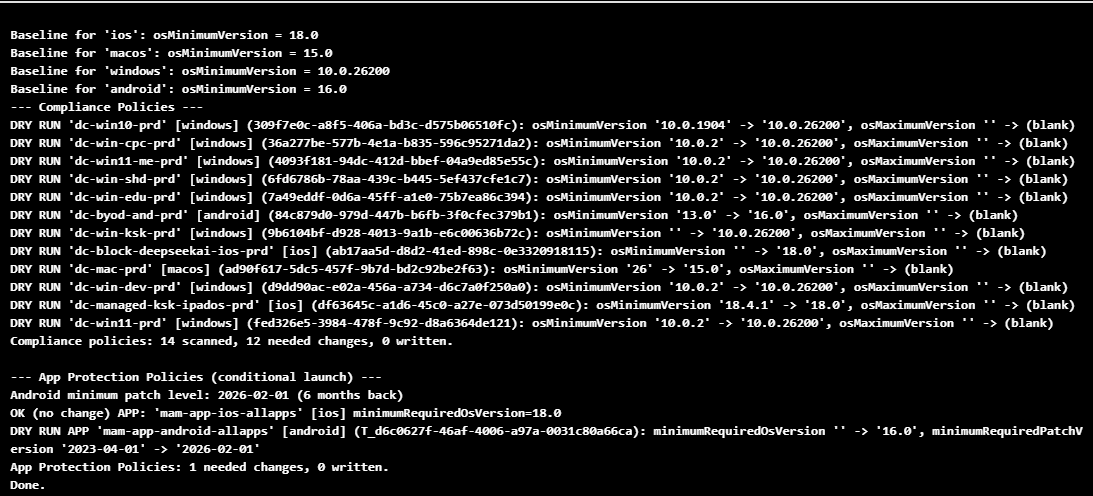
Before touching anything else, read through the output properly. Are the baselines actually correct (iOS 18.0, macOS 15.0, whatever it comes back with)? Are the right policies getting matched? Does the Android patch level look reasonable?
Step 4: turn writes on, one platform at a time.
This is the step that's easy to get wrong the first time, mostly because it's not obvious where in the portal it lives. In the Automation Account, look under Shared Resources → Variables in the left nav. deploy.sh already created both variables for you, empty, so you're just opening and editing them rather than creating anything new.
IntuneOSVersion-AutoApplyPlatforms: open it, you’ll see a Value field and a Type dropdown. Type is String. Leave Encrypted as No, there’s nothing sensitive in a list of platform names. Leave the value blank for now and hit Save.
IntuneOSVersion-ExcludePolicyIds works the same way. Type = String, and leave it empty unless you’ve already got a specific policy GUID in mind that should never be touched. If you do, comma-separate them, no spaces.
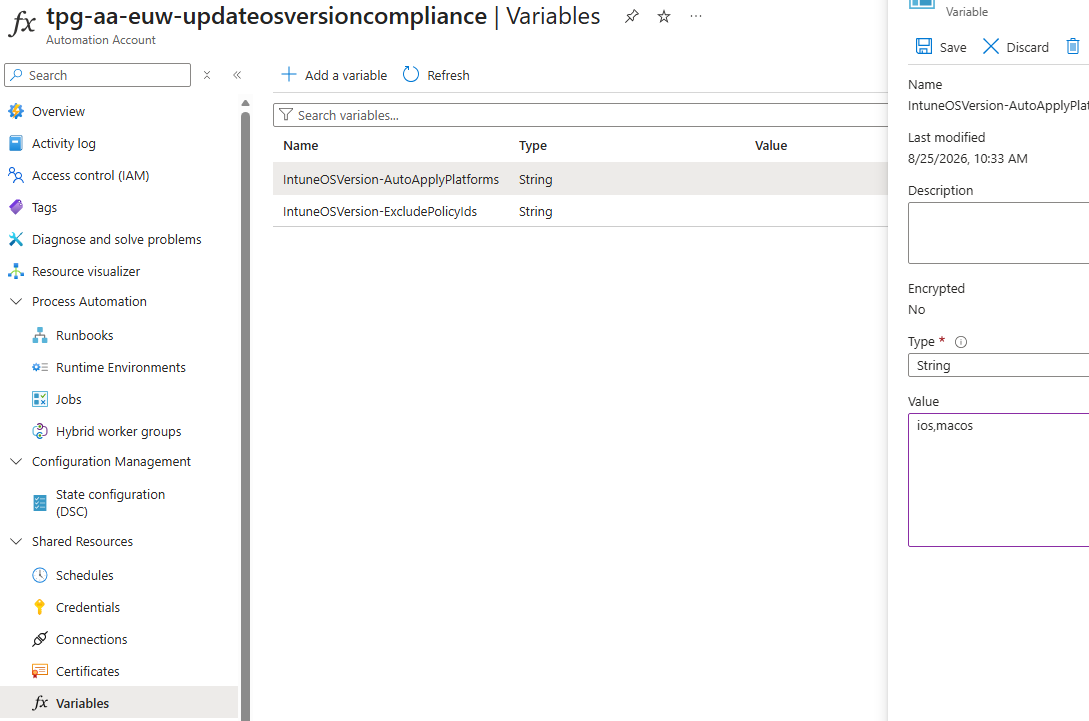
Leaving both blank is exactly what keeps everything in dry-run mode even after the schedule's linked with Apply = true, so don't feel like you need to fill these in right away.
Step 5: turn writes on, one platform at a time.
Once a few dry runs have looked good, go back to Shared Resources → Variables, open IntuneOSVersion-AutoApplyPlatforms, and set the value to whatever you actually trust. I started with iOS and macOS, since their versioning behaves the most predictably:
ios,macosSave it. That's genuinely it, there's no publish step or extra toggle, the runbook just reads the current variable value on every run.
Add Android and Windows the same way, once you've watched a few more runs and you trust it. One thing worth repeating: -Apply on the schedule still needs to be true too. Both gates have to be open before anything writes.
Step 6: verify in Intune.
After a write run, go check the actual policy in the Intune admin center and confirm the values landed where they should have.


Worth checking the audit log too: Intune admin center → Tenant administration → Audit logs, filtered down to the compliance or app protection policy in question.
Rollback
If a run ever computes something wrong, fixing it is refreshingly boring. Go into Intune, set the version back manually. The audit log shows exactly what changed and when. And the script never touches anything beyond osMinimumVersion / osMaximumVersion on compliance policies and minimumRequiredOsVersion / minimumRequiredPatchVersion on app protection policies, nothing else on those policies is ever in scope.
Rough edges
A few things worth knowing before you rely on this. Windows build numbers can be a mess, enablement-package feature updates don't always bump the build number the way you'd expect, so keep an eye on your first few Windows dry runs specifically. Android major-version compliance is honestly a pretty blunt tool, most orgs care a lot more about patch level than OS version anyway, and if I'm being honest the patch-level enforcement on the App Protection Policies is doing more of the real work here than the major-version check on compliance policies is. And obviously the whole thing depends on endoflife.date staying up and accurate. It's community-run, and it's held up fine for me, but if it ever returns bad data one day, the dry-run gate is what catches it before it matters.
The code
It’s all on my GitHub: scripts/auto-update-compliance-policy at main · BurgerhoutJ/scripts
Update-IntuneOSVersionCompliance.ps1: the runbookGrant-ManagedIdentityGraphPermissions.ps1: one-time Graph permission setupdeploy.sh: infrastructure deployment via Azure CLI
That is it for now. Until next time. 👋
Handy! Thanks for sharing Jeroen.