


A colleague asked me to investigate why iPad registration stopped working. Didn’t stop completely, devices went through Setup Assistant without any issues, we had a JIT registration policy, Company Portal was even sent to the device. But every time someone opened Company Portal after that, they were asked to register the device. They went through it, and it asked again. A loop. The management profile was already on the device, so Company Portal couldn’t install its own copy, and it kept trying.
It took a few days to really find it, and it turned out to be two separate problems that were on top of each other. Here’s what was going on and how we solved both.
What actually changed
It turned out that the loop wasn’t a bug in our setup, but a result of something Microsoft changed and only recorded in one paragraph, in the new ADE policy announcement blog. Easy to miss if you don’t read every word, which apparently wasn’t the case.
The old enrollment profile had three settings that handled Company Portal for you: install Company Portal, install Company Portal with VPP, and run Company Portal in single app mode until authentication. All three are gone in the new ADE policy for iOS/iPadOS. Not hidden elsewhere in the wizard, not renamed. Removed.


To be precise about what Microsoft is saying here: for ADE policies with user affinity, they strongly recommend modern authentication as the most secure and seamless method. It’s not the only supported authentication method, the Intune Company Portal app is still a valid option if you specifically need things like forcing a password change or resetting during enrollment, but modern authentication is the one that Microsoft is sending everyone to, and it’s the one that Company Portal is dropping.
There is also a separate workaround if you specifically want to keep the old Company Portal authentication flow: stop user affinity, log in user less, deploy Company Portal itself with the corresponding app configuration policy. Microsoft’s own post explicitly marks that path as not recommended. It is documented as an option, not as a suggestion. And it has its own catch: you must choose the app configuration policy that matches the authentication method you use, otherwise Company Portal won’t work properly on the device, and the auto-update will stop correctly. A user-free device is also very different from a personally assigned device, so for most real-world deployments, this isn’t a live option anyway.
Here’s the mechanism, and it has nothing specifically to do with JIT. During ADE enrollment, Intune already sends the management profile to the device as part of Setup Assistant, which is how the device is initially managed. Company Portal, which opens next, performs its own enrollment step and attempts to install its own management profile to establish user/device affinity. iOS does not land a second management profile if one is already installed. So Company Portal asks you to register, the installation fails quietly because there is nothing left to install, and it asks again. That’s the loop.
Setup Assistant with modern authentication registers the device directly via MDM, no Company Portal is needed to get on the network or become manageable. Faster, safer, a good change. It just also means that nothing will install Company Portal for you in a way that tells the Company Portal what has already happened, and self-service app installation has no other path. No Company Portal that works well, no way for a user to grab an app that you have published as available-non-mandatory.
So, you must rebuild that yourself and tell the Company Portal what it has missed. Three pieces, plus one thing to check before you start.
A requirement that is easy to overlook: Microsoft Authenticator must also be installed on the device. On iOS, it’s the broker app, modern authentication, and the SSO extension both depend on it to do the authentication transfer. No authenticator, and none of this works even if Company Portal and the app configuration are both rolled out correctly. Add it as mandatory VPP app next to Company Portal, same enrollment time, same as Piece 2 below.
Piece 1: enrollment-time grouping
This is the main function of the new ADE policy anyway, so you’re probably already using it. When creating the policy, choose an Entra ID security group in the Device Group tab. Devices land in that group as soon as they enroll, not when the next dynamic group evaluation cycle occurs.
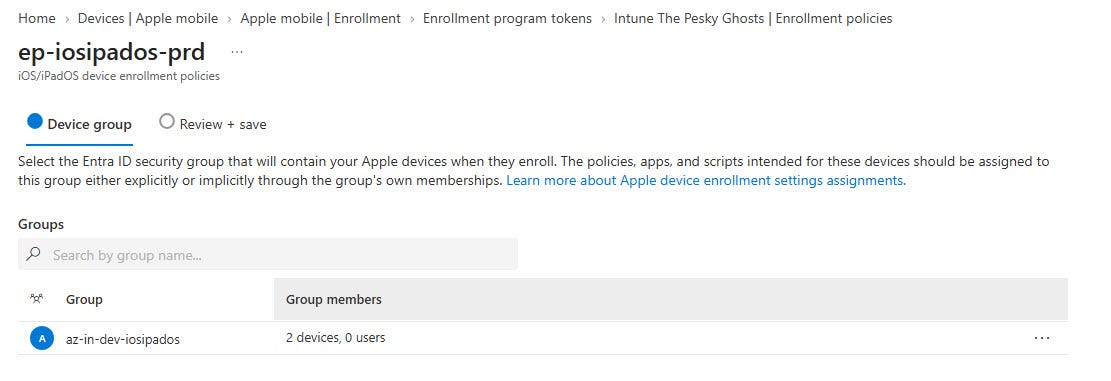
Piece 2: assign Company Portal, and Microsoft Authenticator, as required VPP apps to that group
Nothing exotic here. Two completely ordinary mandatory app commands, just like you would with any other app. The only thing that grouping during enrollment time will give you is that both lands almost immediately after enrollment instead of waiting for a group member renewal. Don’t skip Authenticator, without the broker app installed, the rest of this doesn’t matter.


Piece 3: the app config policy that actually finishes the job
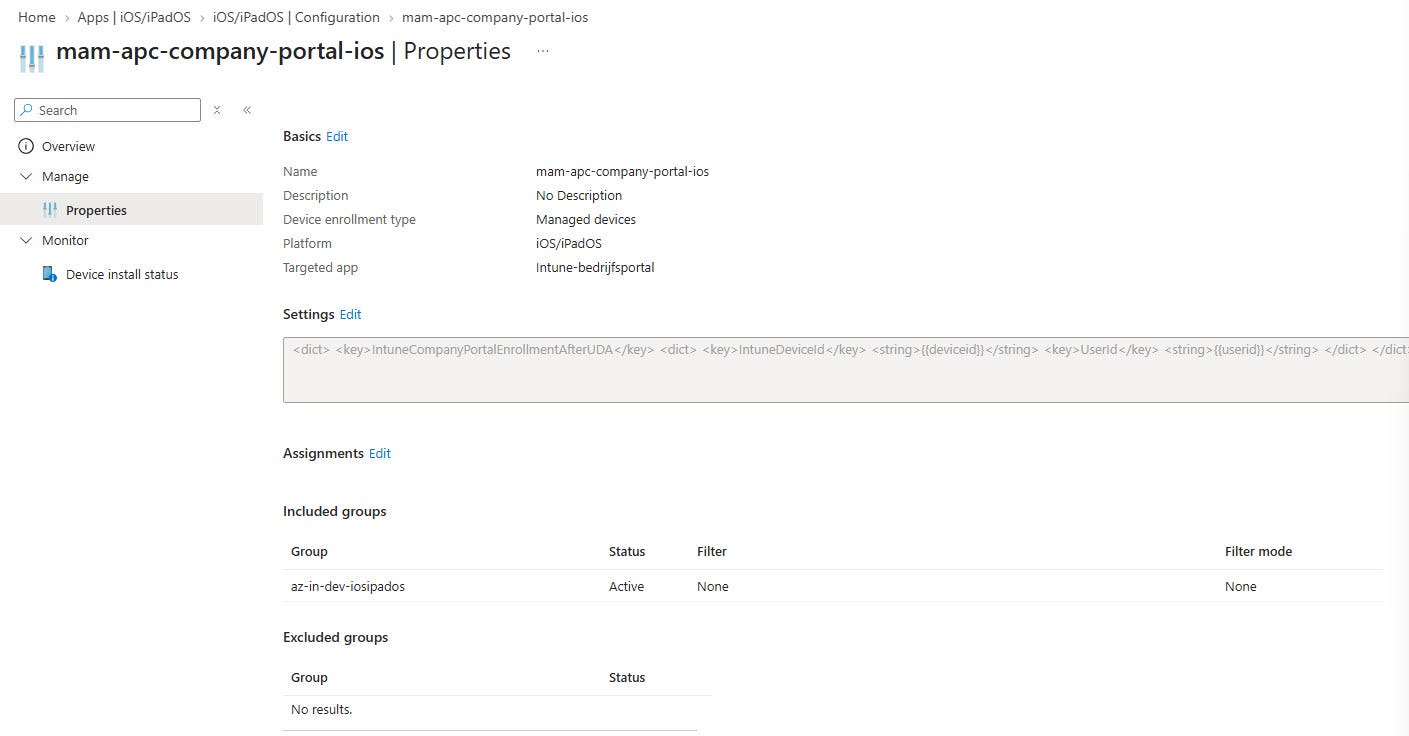
This is the part that solves the loop from the story above. Without those, Company Portal has no idea that there’s already a management profile on the device, so it tries to install its own profile and gets stuck in asking to register the user, forever. You must already notify the device that the device is already enrolled, via app configuration.
Here is the actual policy from my tenant:
{
  "@odata.type": "#microsoft.graph.iosMobileAppConfiguration",
  "displayName": "mam-apc-company-portal-ios",
  "targetedMobileApps": ["<company-portal-app-id>"],
  "encodedSettingXml": "<base64-encoded-plist>"
}
Decode encodedSettingXml and this is what’s inside:
<dict>
  <key>IntuneCompanyPortalEnrollmentAfterUDA</key>
  <dict>
    <key>IntuneDeviceId</key>
    <string>{{deviceid}}</string>
    <key>UserId</key>
    <string>{{userid}}</string>
  </dict>
</dict>
{{deviceid}} and {{userid}} are built-in Intune app configuration tokens, which are resolved on a per-device basis when it’s delivered. This gives Company Portal the device and user identity that are already registered, so that it recognizes the device as already registered instead of trying to overlay its own management profile on top of the existing one. No attempt at second profile installation, no loop.
Target the same enrollment period as the sign-in command above.
The warning you'll read and should ignore, sort of
If you dig into the documentation, you’ll find a note on the Add App Configuration Policies for Managed iOS/iPadOS Devices page that says you shouldn’t manually roll out this app configuration if the enrollment policy has set Install Company Portal to Yes, because Intune already pushes the same configuration automatically. Roll it out manually anyway and Microsoft’s own documentation describes exactly the flow from the beginning of this post: end users are prompted to download a new management profile after logging in to Company Portal, when they shouldn’t, because there is already a management profile on the device.
That warning is about the old registration profile. The new ADE policy doesn’t have a setting for Install Company Portal at all, so there’s nothing that your manual deployment could conflict with. You don’t work around this, you just do what Intune used to do for you, because it doesn’t do that anymore.
Piece 4: fix the JIT policy too, if you're running one
If you don’t use JIT at all, skip this. But if part of your setup relies on the single sign-on app extension to register devices without a Company Portal, and you’ve built that policy out of the general Enterprise SSO extension documents instead of the JIT-specific ones, check it now. This is where our actual run comes from.
A requirement that is easy to overlook: on iOS/iPadOS, Apple requires the Microsoft Authenticator app to be installed together with the SSO extension, it is the broker app with which the extension communicates on the device. Users don’t need to open it or log in; it just needs to be present. But don’t add the bundle ID to the SSO extension policy itself, Microsoft’s own JIT setup documentation is explicit about this: Authenticator is a Microsoft app, so the extension is automatically applied to it, and adding its bundle ID can cause authentication issues. Just assign it separately as a mandatory app under Apps.
{
  "@odata.type": "#microsoft.graph.iosDeviceFeaturesConfiguration",
  "displayName": "cp-jit-sso-iosipados-prd",
  "iosSingleSignOnExtension": {
    "@odata.type": "#microsoft.graph.iosAzureAdSingleSignOnExtension",
    "configurations": [
      {
        "@odata.type": "#microsoft.graph.keyStringValuePair",
        "key": "device_registration",
        "value": "{{DEVICEREGISTRATION}}"
      },
      {
        "@odata.type": "#microsoft.graph.keyIntegerValuePair",
        "key": "browser_sso_interaction_enabled",
        "value": 1
      }
    ]
  }
}
device_registration is the key to the actual JIT work here. Note that the two entries use different @odata.type values, keyStringValuePair vs keyIntegerValuePair, the configurations collection is typed per input, and Graph needs the correct one on each pair, otherwise the request will fail.
Here’s the part that’s really misleading, not just under documented. The JIT setup page documents exactly two keys for this policy: device_registration and browser_sso_interaction_enabled. The Enterprise SSO app extension page documents three of them: AppPrefixAllowList, browser_sso_interaction_enabled, and disable_explicit_app_prompt, and never mentions device_registration. Both pages describe the same child object, the configurations array on iosSingleSignOnExtension, but neither tells you that all these keys can be in the same policy together. If you just read the JIT page, disable_explicit_app_prompt doesn’t exist as far as you know, and it’s a useful setting if users get unwanted login commands from apps that mishandle the protocol layer. Just read the general SSO page, and device_registration doesn’t exist, so JIT seems impossible to configure. You must read both pages and connect yourself, Microsoft never does that for you.
Here’s the part where I stop being neat and admit that this happened to us. This is the actual policy that applied to my tenant when the loop started:
{
  "displayName": "cp-jit-sso-iosipados-prd",
  "description": "Creates a single sign-on app extension policy that uses the Apple SSO extension to enable just-in-time (JIT) registration.",
  "iosSingleSignOnExtension": {
    "@odata.type": "#microsoft.graph.iosAzureAdSingleSignOnExtension",
    "configurations": [
      {
        "@odata.type": "#microsoft.graph.keyStringValuePair",
        "key": "AppPrefixAllowList",
        "value": "com.apple."
      },
      {
        "@odata.type": "#microsoft.graph.keyIntegerValuePair",
        "key": "browser_sso_interaction_enabled",
        "value": 1
      },
      {
        "@odata.type": "#microsoft.graph.keyIntegerValuePair",
        "key": "disable_explicit_app_prompt",
        "value": 1
      }
    ]
  }
}
We built this based on the Enterprise SSO app extension page, not the JIT page, because at that point, the search query that got us there first landed on that page. The name says JIT, the description says JIT, but there is no device_registration key in it. JIT never actually ran on these devices. It seemed configured, it just didn’t do the one thing that matters.
That is the other half of the original loop. JIT didn’t register any devices, so Company Portal was the only thing left to try, and it kept clashing with the management profile that ADE already had installed. Fix the JIT policy with the right key, and it will do its job again, registering the device via Teams or Outlook without Company Portal having to touch it. On top of that, fix the configuration of the Company Portal app for the self-service corner, and both problems are gone.
If you have implemented a JIT policy and enrollment loops continue to appear, check first. Get the policy from Graph and look for device_registration in the configurations array. If it’s not there, you’ve been following the same page as us.
If end-users need to browse and install available apps on their own, Company Portal must work properly, which are Pieces 1 through 3. If you’re also using JIT, Piece 4 is what ensures device registration happens rather than quietly not happening. In our case, we needed both, and the JIT solution was what stopped the loop.
That is it for now. Until next time. 👋
Hey Jeroen,
I am just missing one part - is the registration part in CP automated for you? Example: after the completed ADE enrollment, does CP still requires user to authenticate for the second time even though there is a user-affinity at the enrollment stage (users have to SSO auth to start the enrollment).