


Now that your macOS devices are enrolled in Microsoft Intune, it’s time to focus on security and compliance. In this post, we'll cover:
✅ Compliance policies (password rules, OS updates, encryption)
✅ FileVault encryption enforcement
✅ Firewall & Gatekeeper settings
✅ Monitoring compliance & security status
Why Security & Compliance Matter for macOS in Intune
Organizations need to protect sensitive data and ensure macOS devices meet security requirements.
🔥 Common Security Risks for macOS Devices:
Unencrypted devices – Data loss if a Mac is stolen
Weak passwords – Easy access for attackers
Malware & unauthorized apps – Compromised systems
Outdated OS & patches – Vulnerabilities
📌 Solution? Microsoft Intune allows IT admins to enforce compliance policies, encryption, and security settings to keep macOS devices secure.
Key Security & Compliance Features in Intune
Feature What It Does Recommended For Compliance Policies Enforce security rules (passwords, OS updates) All managed Macs Security Baselines Apply preconfigured security settings Corporate-owned Macs FileVault Encryption Encrypts disk to prevent unauthorized access Laptops & sensitive data Firewall & Gatekeeper Controls network access and app execution policies All Macs Conditional Access Blocks access to company resources if non-compliant All managed devices
💡Combine compliance policies, and Conditional Access to enforce security without disrupting users.
Configuring Compliance Policies for macOS
Creating a Compliance Policy
Sign in to Microsoft Intune Admin Center
Navigate to Devices -> macOS -> Compliance
Click + Create Policy
Click Create for the new policy
Give the policy a name
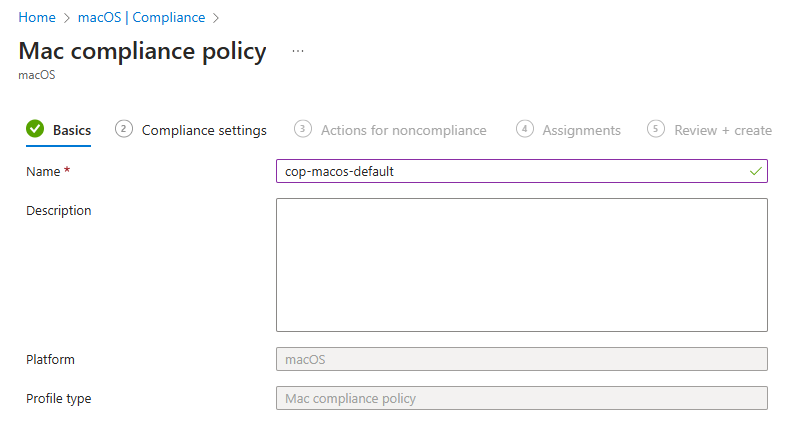
Configure the settings according to your needs
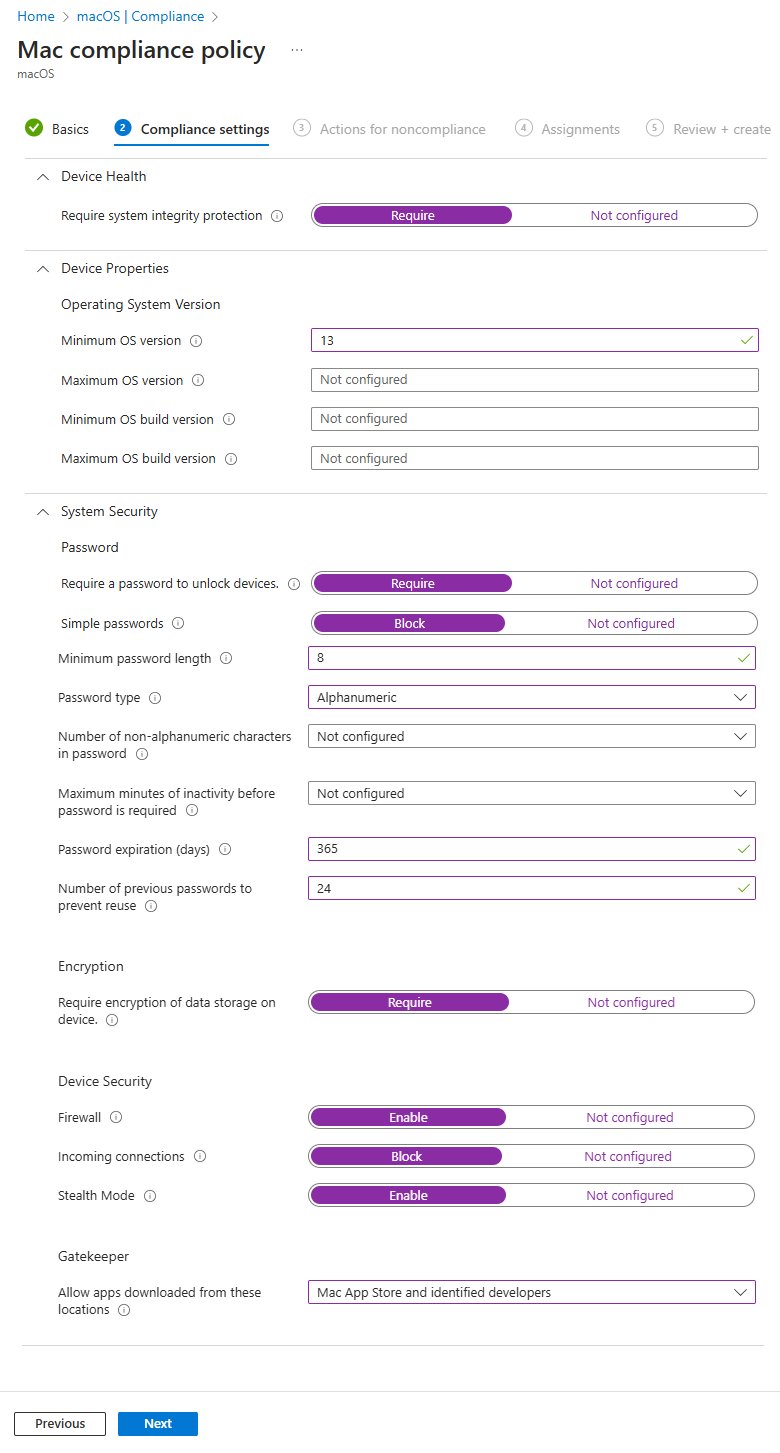
Click Next
Configure the actions for non-compliant devices
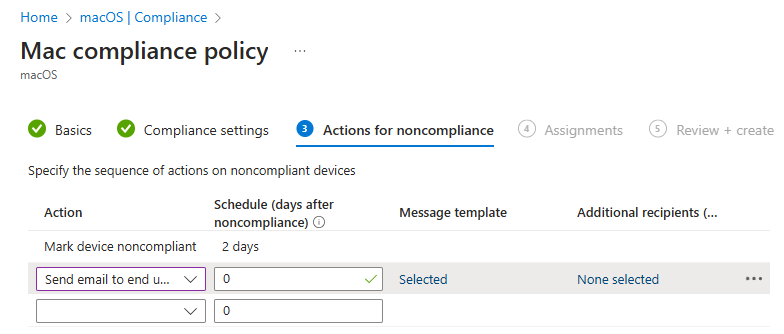
Assign the policy to a group of MacOS devices
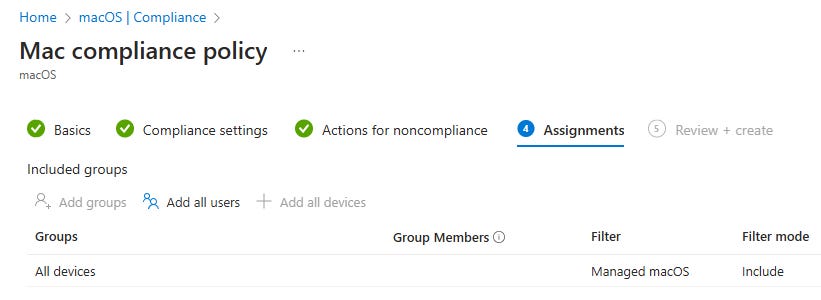
Click Create
The policy is now active
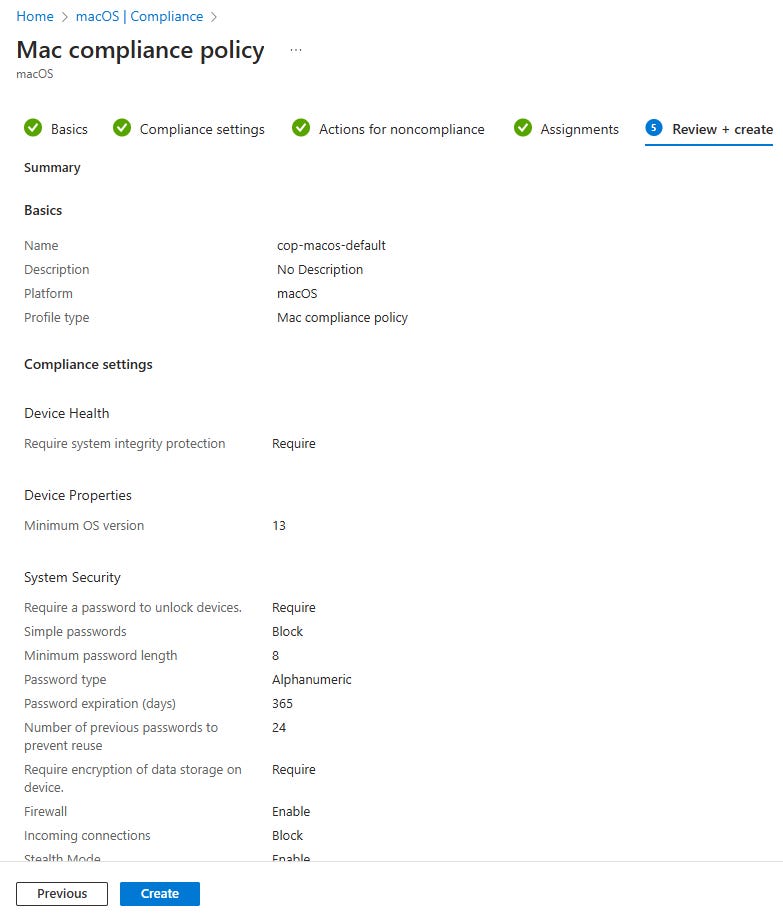
Key Compliance Settings
Setting Description Recommended Setting Password Requirements Enforces complex passwords ✅ At least 8 characters, mix of letters/numbers Encryption (FileVault) Requires devices to be encrypted ✅ Required OS Version Ensures macOS is up to date ✅ Latest 2 versions Firewall Enabled Protects against unauthorized network access ✅ Enabled Gatekeeper Enabled Blocks unverified apps from running ✅ Enabled
💡Use Conditional Access to block devices that don’t meet compliance rules!
Enforcing FileVault Encryption
FileVault encrypts the entire macOS drive, preventing unauthorized access, like Bitlocker for Windows devices.
Since it is recommended to start FileVault during enrollment via ADE, we need to do 2 things, namely:
In the Setup Assistant, display the FileVault screen. See the previous post about the screens in the Setup Assistant
Create a policy to start FileVault during the Setup Assistant.
How to Enforce FileVault with Intune
Go to Devices -> macOS -> Configuration
Click + Create Profile
Select Profile type: Settings Catalog
Give the policy a name
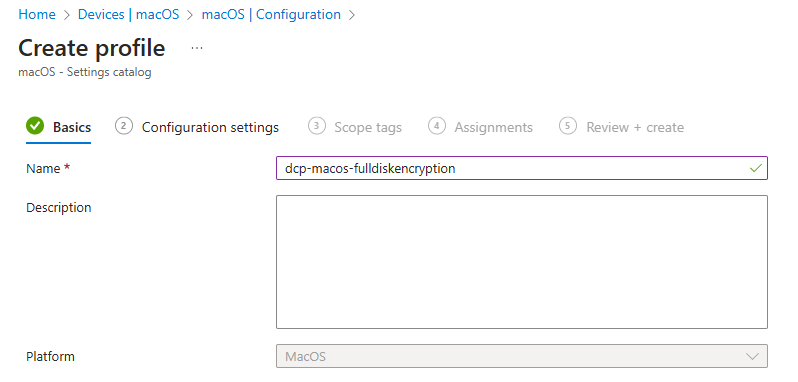
Click + Add Settings
Select Full Disk Encryption
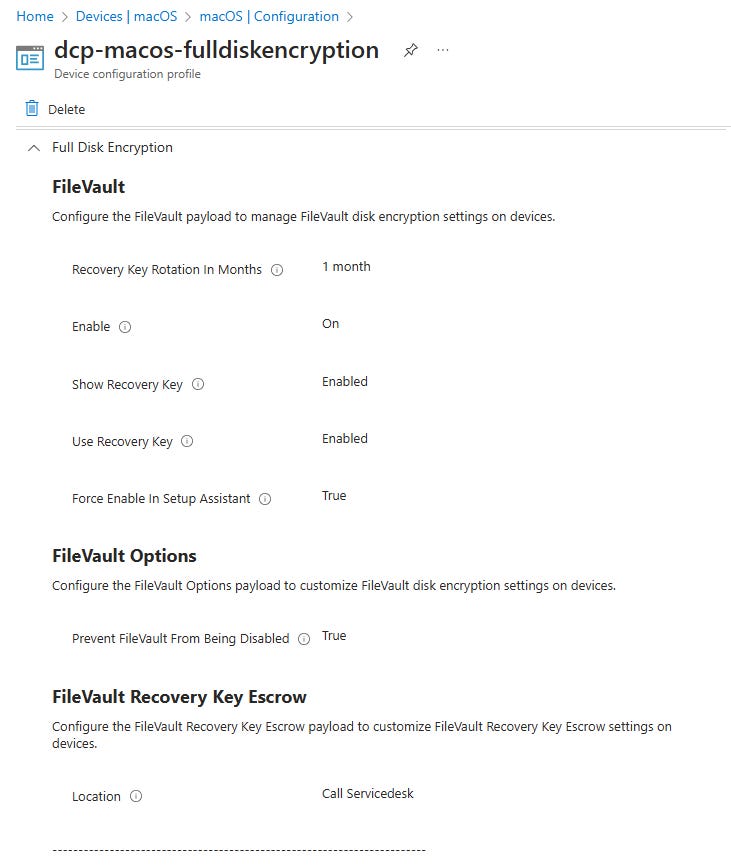
Configure the following FileVault settings:
Recovery Key Rotation In Months: 1 month
Enable: On
Show Recovery key: Enabled
Use Recovery key: Enabled
Force Enable in Setup Assistant: True
Prevent FileVault From Being Disabled: True
Location:
Assign the policy to a group of macOS devices
✅ Best for: Laptops with sensitive company data.
💡
🔑 Recovery Key Backup: Users can retrieve their recovery key from Intune Company Portal.
Managing Firewall and Gatekeeper Settings
Firewall and Gatekeeper help protect against network threats and unauthorized apps.
Enforcing macOS Firewall with Intune
Go to Devices -> macOS -> Configuration
Click + Create Profile
Select Profile type: Settings Catalog
Give the policy a name
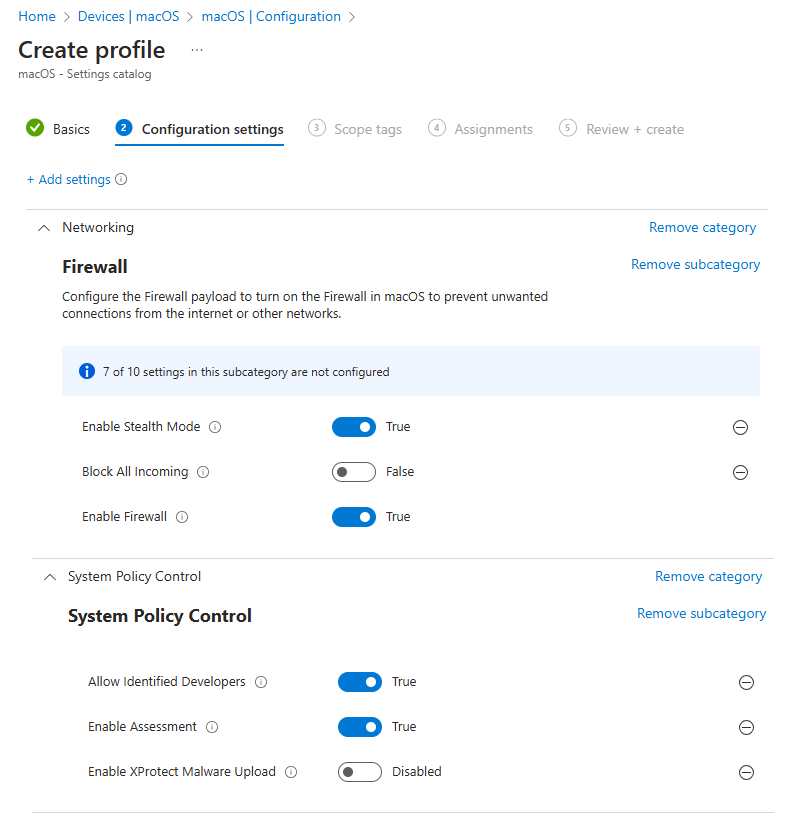
Configure the following Networking settings:
Enable Firewall: True
Block All Incoming: False
Enable Stealth Mode: True
Configure the following Networking settings:
Allow Identified Developers: True
Enable Assessment: True
Enable XProtect Malware Upload: Disable
Assign to a group with macOS devices
Click on Create
💡
Tip: Enabling Gatekeeper and Firewall together provides strong macOS security.
Monitoring Security & Compliance Status
Checking Device Compliance Reports
In Intune Admin Center, go to Reports > Device Compliance
Filter for macOS devices
Check non-compliant devices and their issues
Using Microsoft Defender for Endpoint (Optional)
For advanced threat protection, integrate Microsoft Defender for Endpoint with Intune.
✅ Provides real-time threat monitoring
✅ Detects malware and vulnerabilities
✅ Blocks suspicious network activity
📌 See this page Microsoft Learn for more information on configuring Defender for Endpoint.
Next Steps
Now that macOS security policies are in place, you can:
Deploy apps securely (Mac App Store, PKG, DMG)
Configure Conditional Access (block non-compliant devices)
Monitor security with Defender & Intune Reports
🚀 Up next: Deploying and Managing Apps on macOS with Intune!
Want to Stay Updated?
🔹 Follow this blog for more Intune macOS management tips!
🔹 Leave a comment if you have any questions!
That is it for now. Until next time. 👋