


Shared PCs are a perfect fit for frontline, education, or shift-based environments, where devices are used by multiple users throughout the day. But managing them right requires the right balance between security, performance, and user experience.
In this post, I’ll walk you through how to configure Windows Shared PCs with Microsoft Intune, explain the key differences from kiosk mode, and share a few best practices.
Difference Between Kiosk and Shared PC
While both Kiosk and Shared PC modes aim to simplify multi-user scenarios, they serve very different purposes.
Kiosk mode is designed for single-app or multi-app lockdowns — think digital signage, reception screens, or terminals running just one or two apps.
Shared PC mode, on the other hand, enables multiple users to sign in (with Entra ID accounts) and provides a consistent, managed experience while automatically cleaning up inactive user profiles.
Shared PC mode supports:
Microsoft Entra ID accounts
Guest accounts
Automatic cleanup policies
Fast sign-in and optimized performance
OneDrive synchronization
If your environment requires multiple users logging in with their own accounts and accessing productivity tools, Shared PC mode is the way to go.
Licensing Requirements for Shared PCs
Licensing Shared PCs can be confusing, but here’s the clean and correct version without the noise.
Do you need Microsoft Intune Plan 1 Device?
In most Shared PC scenarios, you do NOT need the Microsoft Intune Plan 1 Device license.
You only need Microsoft Intune Plan 1 Device if the device is used by users without Intune-eligible licenses, such as:
Temporary workers without M365/EMS licenses
Generic/shared accounts
Local or on-prem AD accounts
Walk-up or public-access PCs
If your Shared PC is used by employees or students who already have one of the following licenes:
Microsoft 365 F3 / E3 / E5
Microsoft 365 Business Premium
Microsoft 365 A3 / A5
EMS E3 / E5
Then Intune management is already covered, policies, compliance, Conditional Access, Windows Hello for Business and Personal Data Encryption all work normally, without a separate Microsoft Intune Plan 1 Device.
Enrollment of Shared PCs
Enrolling a Shared PC into Intune follows the same technical flow as any other Windows device, but the ownership model behave differently, and this is where many admins get confused.
Autopilot Enrollment
Shared PCs are usually registered with Windows Autopilot. Yes, there are other ways to register, but that is manual, and I prefer the fully automatic process. That is why I will explain how it works with Autopilot. In my opinion, it is very simple.
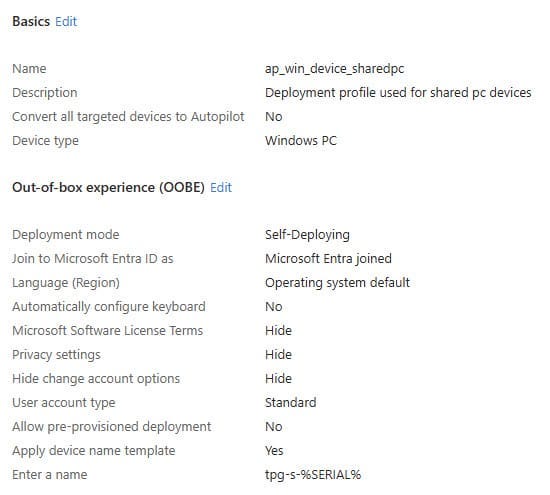
The advantage of Autopilot in combination with Self-Deploying mode is that no end user needs to be involved to complete the enrollment.
So the most important option to enable in the Autopilot profile is Self-Deploying mode, as shown in the screenshot below.
Understanding the “Primary User”
In Intune, every device normally gets a Primary User, which is used for:
Helpdesk and ownership views
Intune audit trails
App assignment optimizations
Usage reporting
Licensing visibility
But in Shared PC mode there is no meaningful Primary User!
The device is intentionally designed to have multiple rotating users, so Intune does not track a primary owner.
You may still see:
“None” as Primary user
A generic system account
But this does not affect the functionality.
OneDrive Configuration
OneDrive plays a huge role in the Shared PC experience.
By default, user data isn’t stored locally for long, so you’ll want to make sure Known Folder Move (KFM) and Files On-Demand are properly configured.
A few tips:
Enable OneDrive auto sign-in using the user’s Entra ID credentials.
Use Files On-Demand to prevent unnecessary sync and save disk space.
Redirect Documents, Desktop, and Pictures to OneDrive to make sessions stateless.
Enable the EnableSharedPCModeWithOneDriveSync setting for a smoothless OneDrive synchronization.
This combination keeps user data safe in the cloud, even if profiles are removed by the cleanup policy.
Microsoft 365 Apps in Shared Mode
Deploying Microsoft 365 Apps on Shared PCs requires a small but important configuration tweak.
Instead of installing them in the default mode, use the Shared Computer Licensing (SCL) option.
This allows multiple users to sign in with their own M365 credentials without requiring separate activations.
💡Put the following rule in the XML-file: <Property Name=”SharedComputerLicensing” Value=”1” />
This ensures users get a seamless M365 experience, each using their own license, no conflicts, no sign-in headaches.
💡Go to https://config.office.com to create your M365 Apps XML, which you can use to create a win32app for deployment. If you have any questions about this, let me know.
Login with Password or Windows Hello for Business
Shared PCs fully support password-based logins, but you can (and should) also enable Windows Hello for Business (WHfB).
⚠️ The maximum number of supported WHfB enrollments on a single device is 10. This lets 10 users each enroll their face and up to 10 fingerprints.
It is unclear whether PIN also falls under this limitation.
When combined with FIDO2 or PIN-based authentication, users can sign in faster and more securely.
For shared environments, consider enabling PIN reset option or using security keys for flexibility.
Another option for logging in is to use web sign-in. With web sign-in, you can log in without a password using methods such as the Microsoft Authenticator app.
The key is to balance security and usability:
Keep WHfB enabled for enrolled users
Allow fallback to passwords for normal and guest accounts
Combine with Intune compliance and Conditional Access for control
Personal Data Encryption (PDE)
One of the newer and often overlooked security layers for Shared PCs is Personal Data Encryption (PDE).
It’s designed to protect user data on the device by encrypting personal files and settings tied to their sign-in credentials.
Here’s how it works:
When a user signs in with Windows Hello for Business, their identity key encrypts their personal files.
When they sign out or their session expires, the encrypted data can’t be accessed by anyone else.
This makes PDE ideal for shared environments — especially when combined with automatic profile cleanup and OneDrive KFM.
You can enable PDE via Endpoint Security -> Disk Encryption, ensuring user files stay protected even if local data remnants remain temporarily on disk.
Despite this notice on the Learn website
💡If you sign in with a password or a FIDO2 security key, you can't access Personal Data Encryption protected content.
it is still possible to access the encrypted documents using a FIDO2 key or, as a fallback, a password. Don't ask me why, but I will raise this with Microsoft. Even my first login.
In short: PDE ensures that even on a shared or temporary device, user data remains private, encrypted, and unreadable to others.
Power Settings and Maintenance
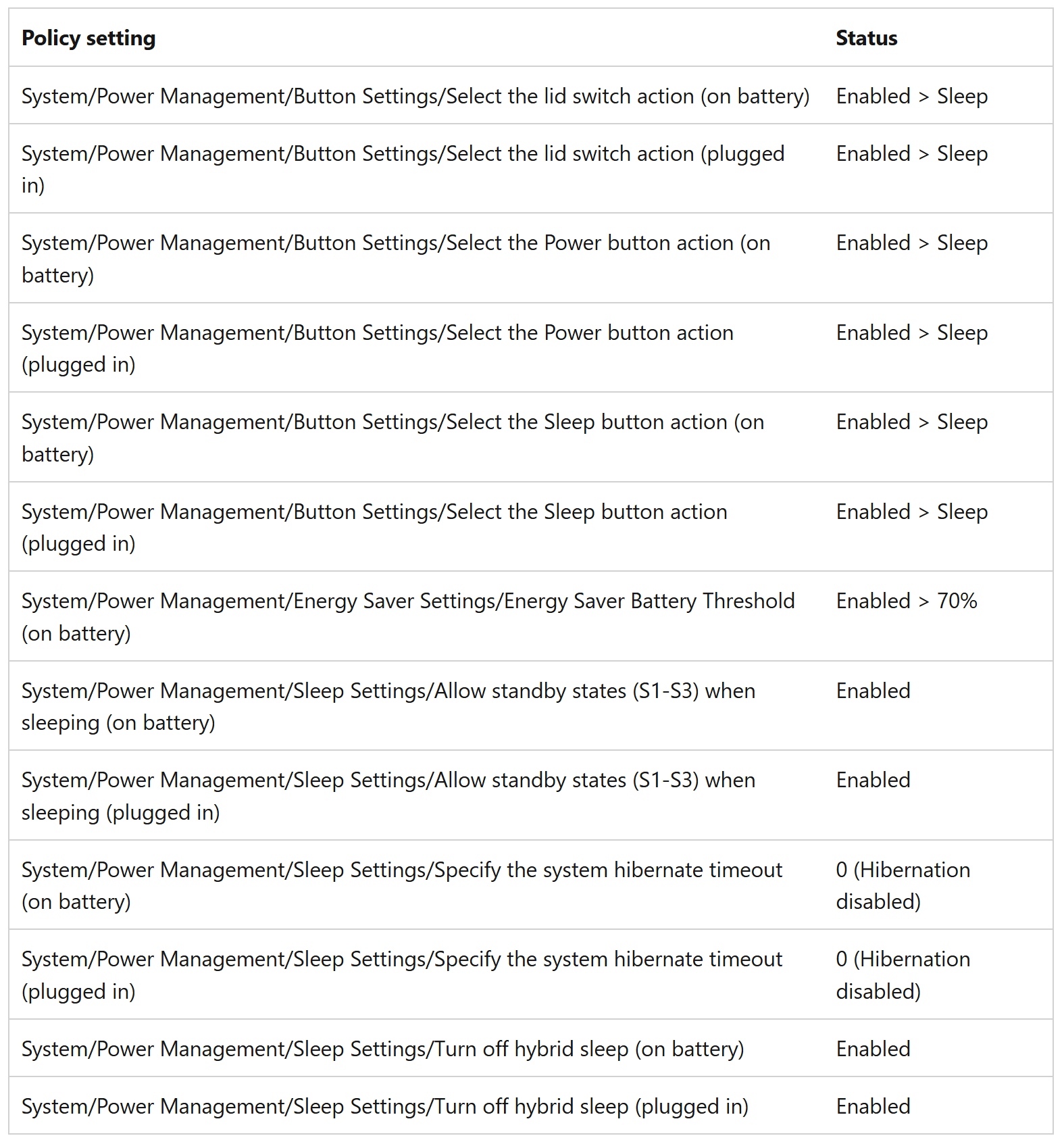
In principle, you don't have to configure separate power settings for a Shared PC. Because as soon as Shared PC mode is enabled, power settings are already set in the local GPO. The settings which will be set are:
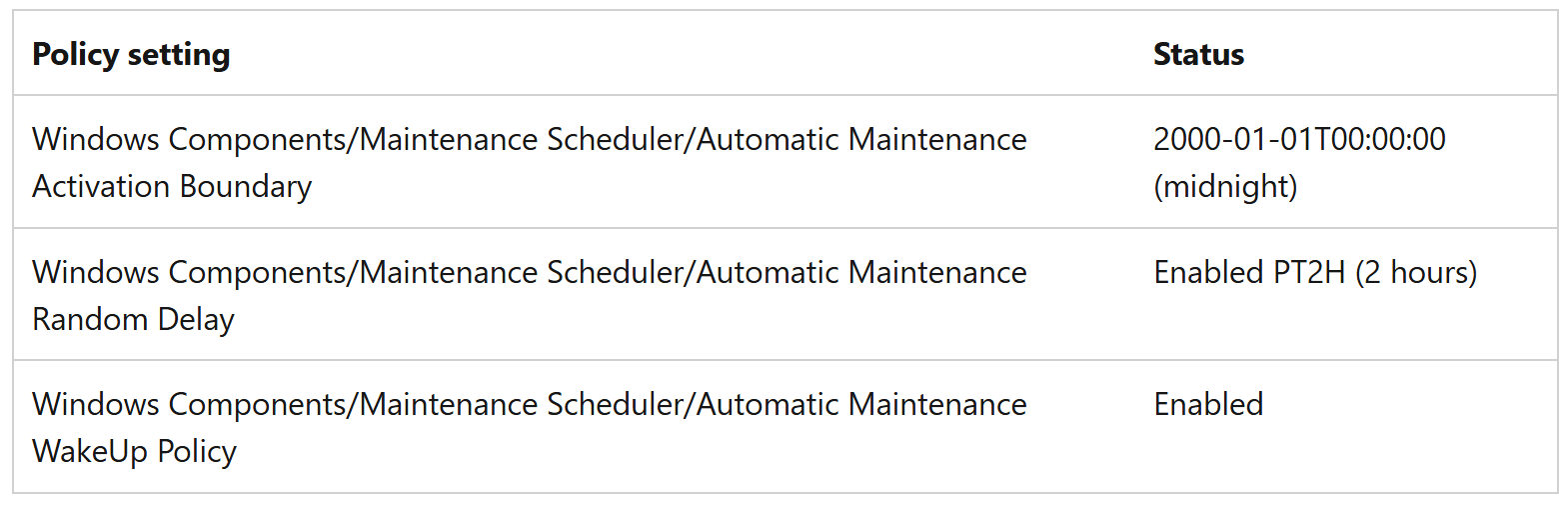
The same applies to the Maintenance schedule. This is also set when the Shared PC mode is set.
Bonus: Global Secure Access Private Access
Finally, let’s talk about Global Secure Access (GSA), Microsoft’s modern approach to secure connectivity.
By combining Shared PCs with GSA Private Access, you can provide Zero Trust network access to on-premises resources without requiring a traditional VPN client.
Users can:
Access internal web apps or file shares securely
Authenticate with Entra ID
Stay compliant with Intune and Conditional Access policies
In shared environments (like retail or classrooms), this means users get secure access, without exposing the full corporate network.
💡To use Entra Private Access, you need a separate license, namely Microsoft Entra Private Access. This is a user-based monthly license. Of course.
Here in the Netherlands, this license starts at around €4.30 excluding VAT.
Download the Policies
Want to get started right away?
You can download my preconfigured Shared PC Intune policies directly from GitHub:
👉 Download from GitHub
These templates include:
Shared PC configuration profiles
OneDrive configuration
Settings Page configuration
Autopilot profile
M365 Apps Shared PC XML
PDE configuration
Wrap-up
Windows Shared PC mode is one of those hidden gems in the Intune ecosystem, lightweight, secure, and perfect for environments with rotating users.
When configured with OneDrive, M365 Apps, WHfB, Personal Data Encryption, and GSA, it becomes a flexible, modern, and secure shared workspace.
If you have any questions, feel free to reach out. Always happy to share ideas and tips from the field.
That is it for now. Until next time. 👋